
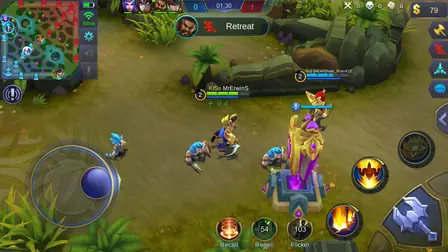
The standard update
Updating the app works like any sideloaded app. Download the new APK from the app download page and install it directly over your current build. Your heroes, diamonds, and ranked progress carry over automatically, because both files come from the same source with matching signatures. The whole process takes a few minutes.
Match your build
Download the same bitness you already have: 64-bit over 64-bit, 32-bit over 32-bit. Installing the other build triggers a signature mismatch and Android will refuse. If you are not sure which one you installed, check the 32-bit vs 64-bit guide before downloading.
When the installer refuses
A signature conflict means your installed copy came from a different source than the new file. The fix is a clean slate: uninstall the old build, install the new file fresh, and start over. You will lose local progress, which is why it pays to always update from the same trusted source. If the install fails for other reasons, the install troubleshooting guide covers every error.
When to reinstall instead of updating
If the game has been crashing, acting strangely, or failing to connect, skip the overwrite and do a clean install. Uninstall the app, restart your phone, and install the latest build fresh. A clean install resolves corrupted data that an update would just carry forward.
After the update
Open the game and confirm your diamonds, skins, and rank are intact. Play one quick classic match to verify everything runs. Then keep playing: the current build is v3.2, and staying on it means you get the latest stability fixes the project ships.